Xogot to TestFlight: Deploy iPad Games with ShipGodot

ShipGodot is our second take to streamline the publishing experience for iOS. We shared our initial approach during our GodotCon Amsterdam 2026 talk.
Over the following months, we focused on refining the user journey to enable full App Store publishing straight from a tablet, while keeping the process approachable for creators without a technical background. The result is a plugin that releases Godot games and apps directly from Xogot.
In this tutorial we'll be using the Kenney Racing StarterKit as an example to guide you through installing, authenticating and building your first build to TestFlight.
Requirements to get started:
- - An active ShipGodot license. Get your license here.
- - Requires a paid Apple Developer Program membership to work.
Download ShipGodot
ShipGodot isn't available in the Xogot Asset Library yet, so for now we'll have to install it manually.
- 1. Open the Godot Asset Store in your browser and search for ShipGodot
- 2. Download the latest version from the store
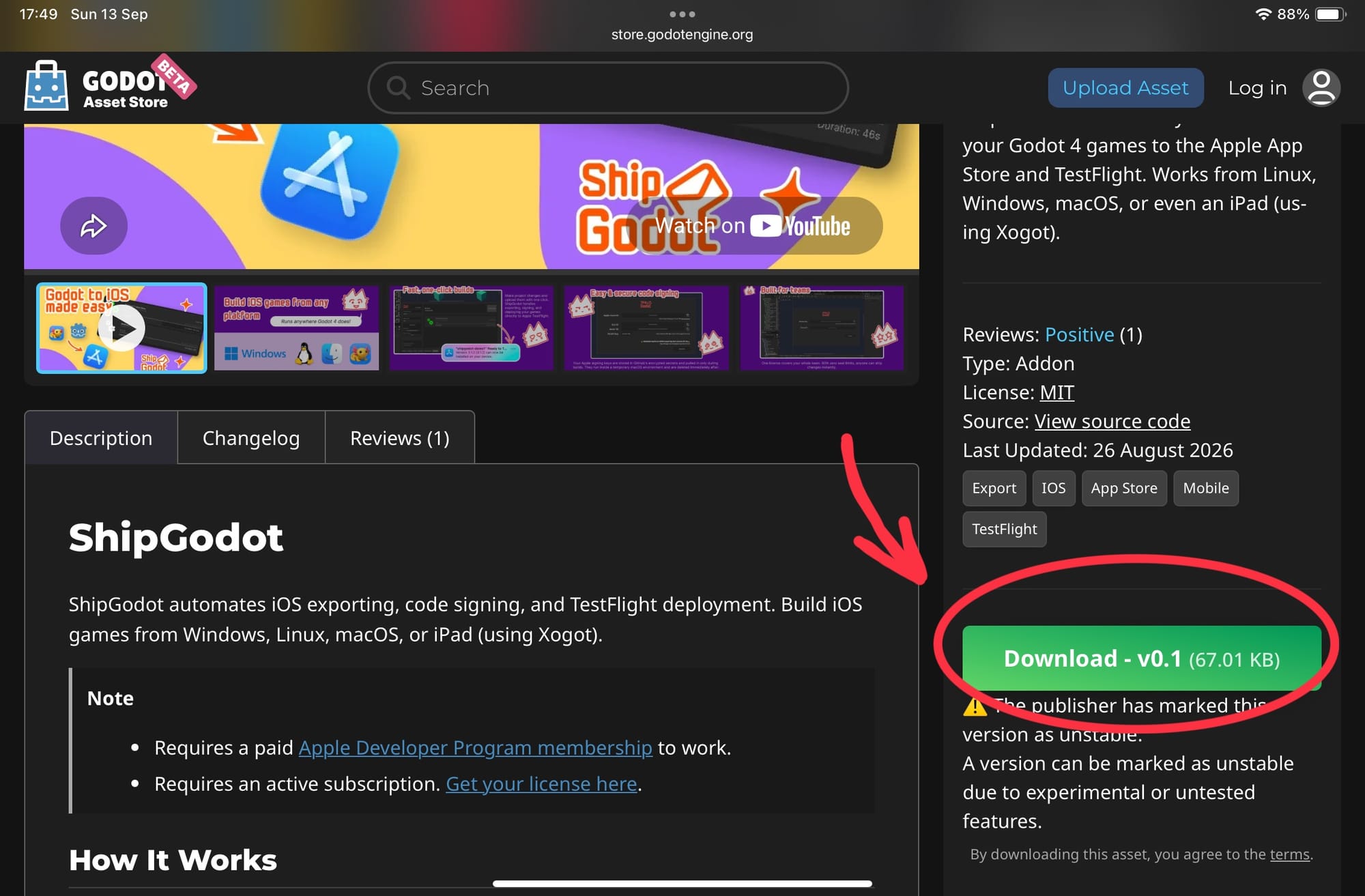
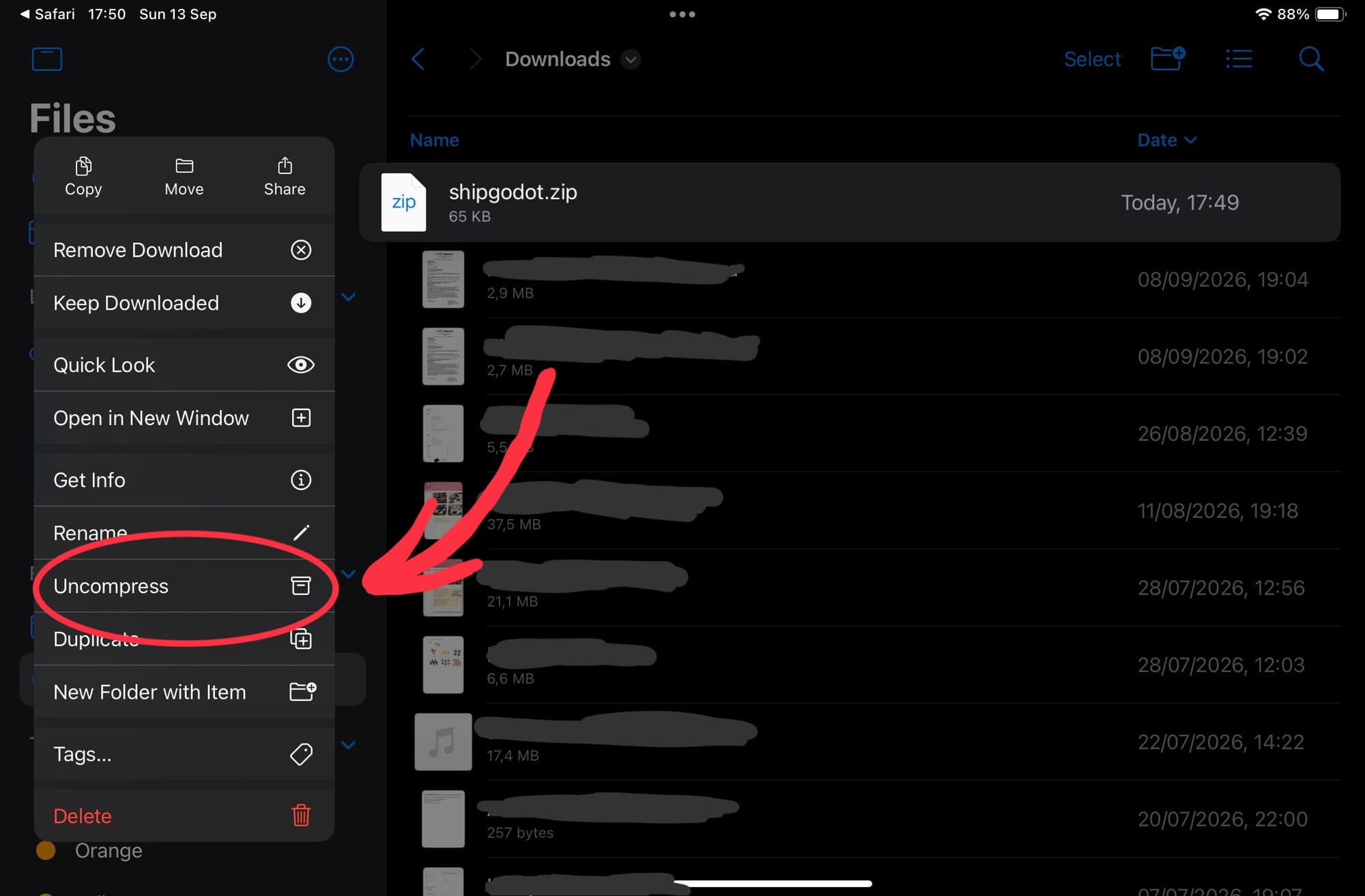
- 3. Open the Files app and find
shipgodot.zipin Downloads - 4. Uncompress the archive and open the
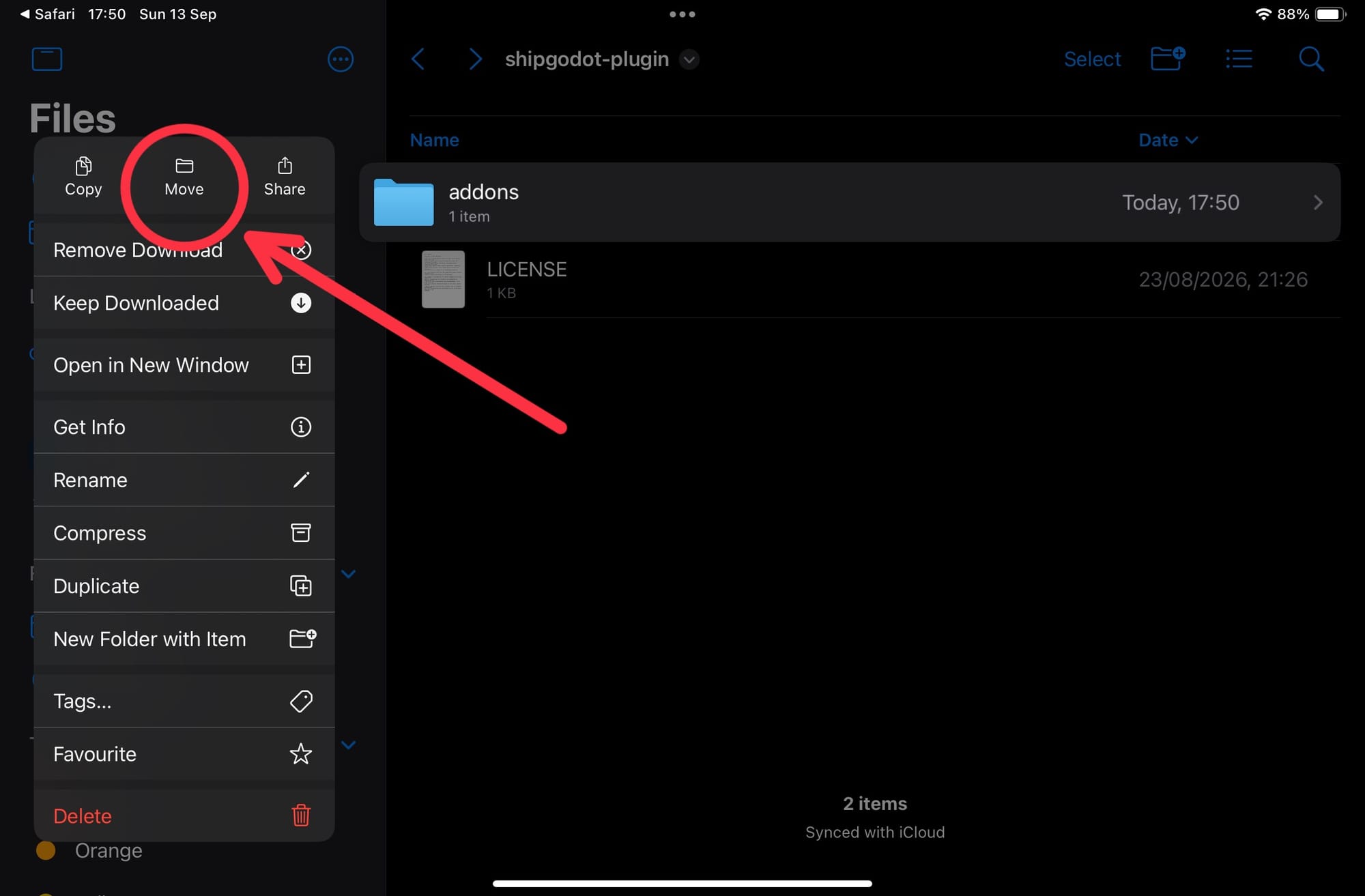
shipgodot-pluginfolder - 5. Move the
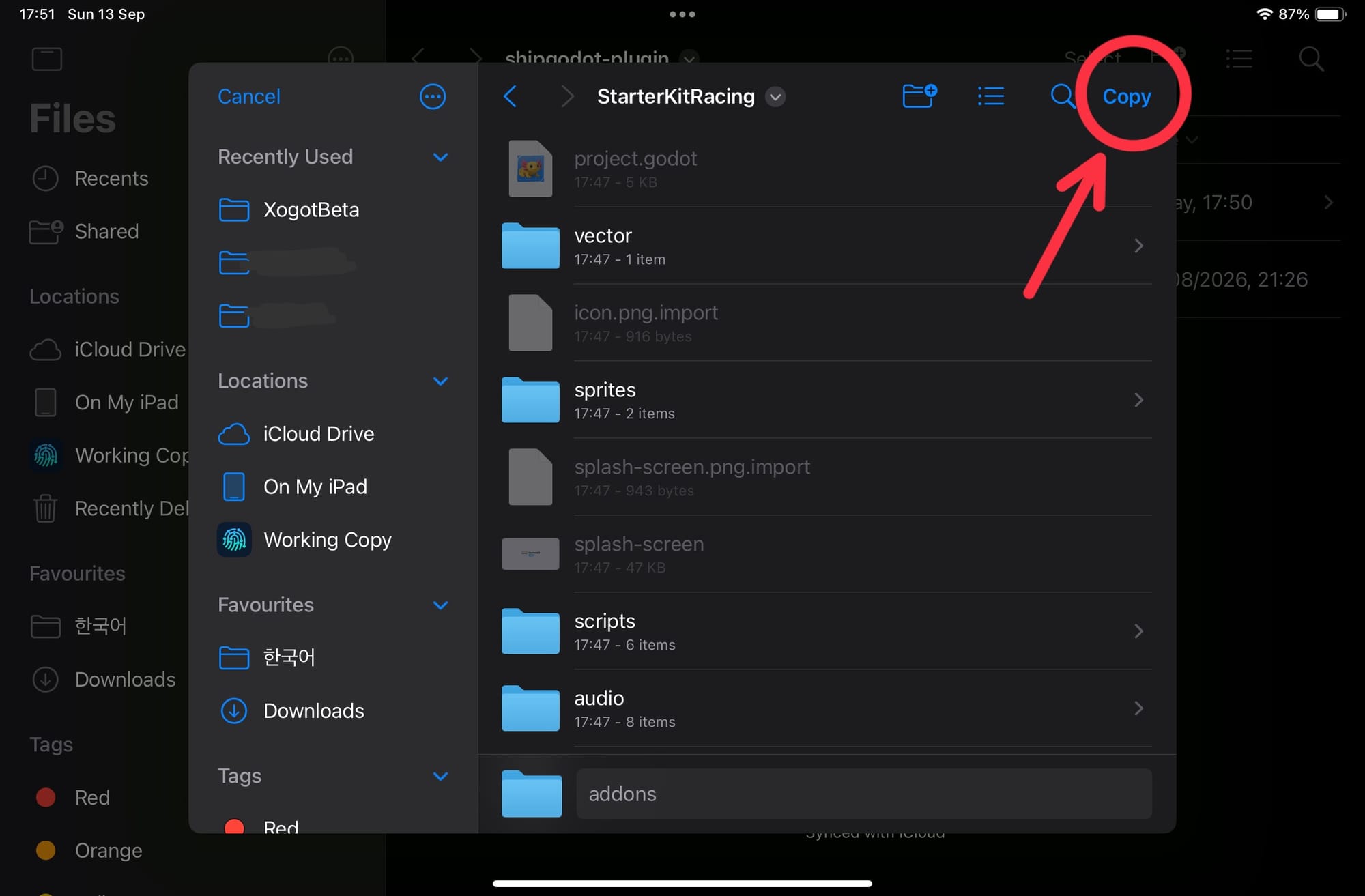
addonsdirectory into your Xogot project folder:
On My iPad > Xogot > [Project Name]
Enable the plugin in Xogot
- 1. Open your project in Xogot
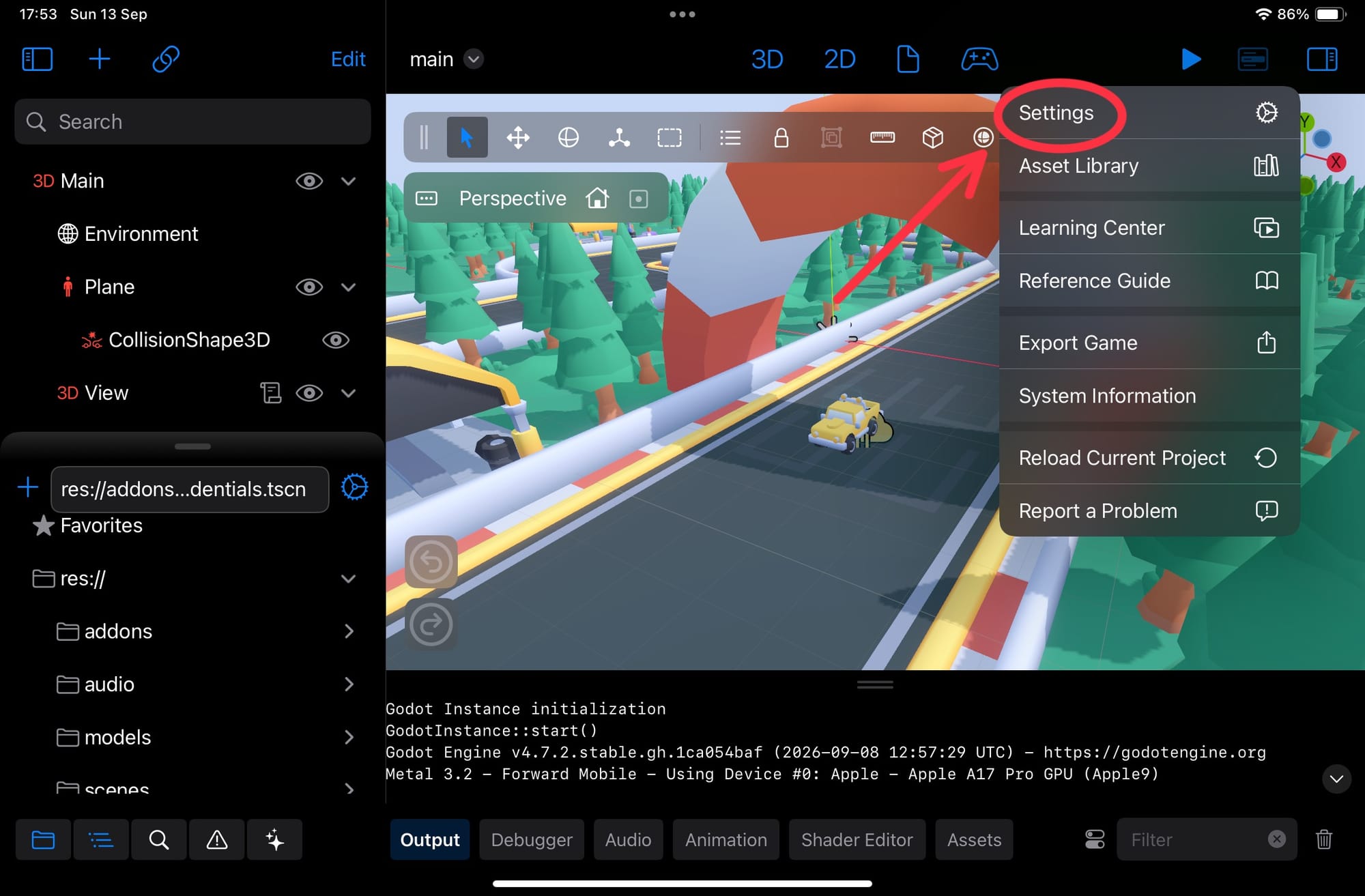
- 2. Go to Settings and pick Plugins from the dropdown next to General
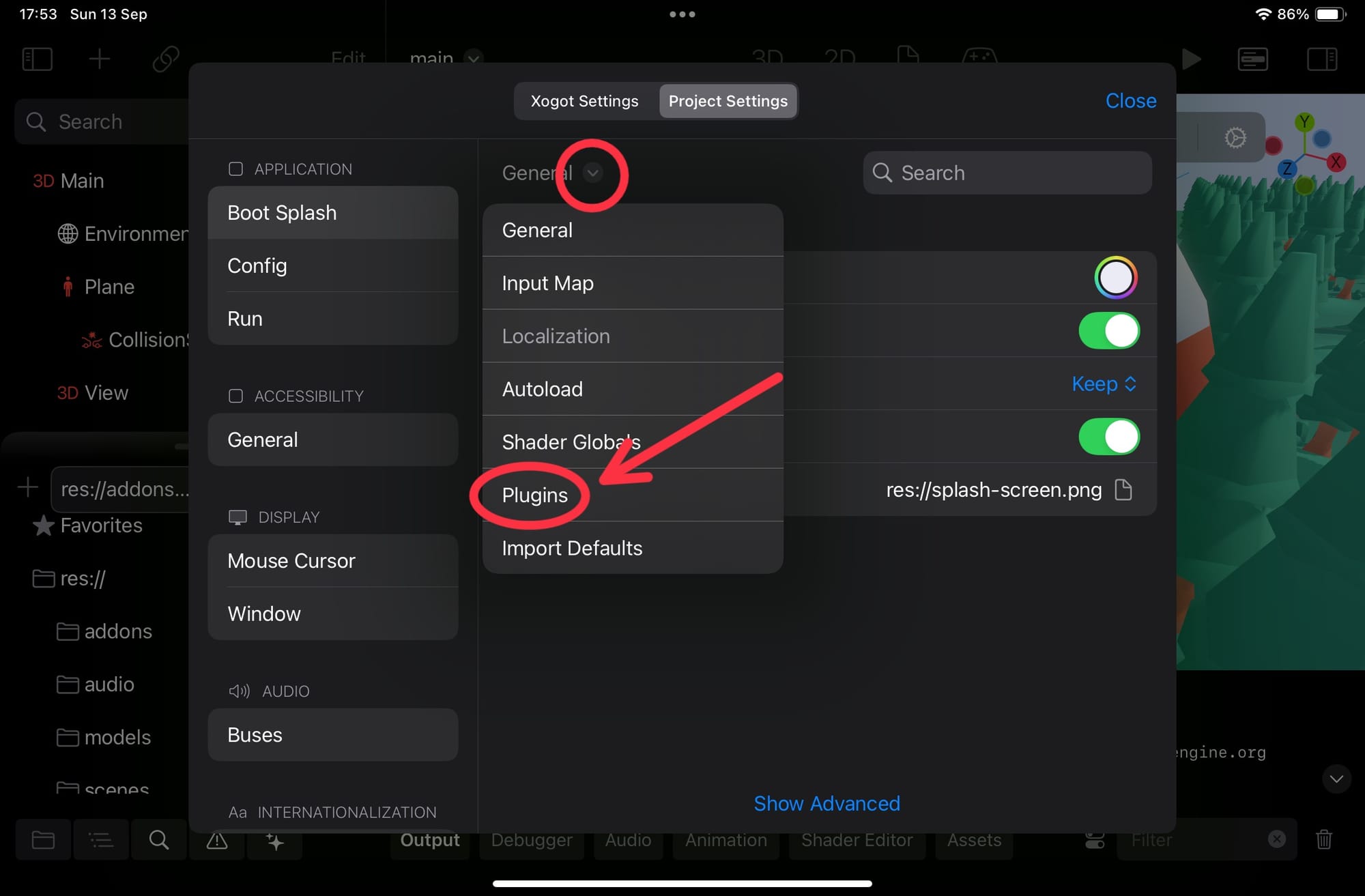
- 3. Flip the switch on ShipGodot - iOS
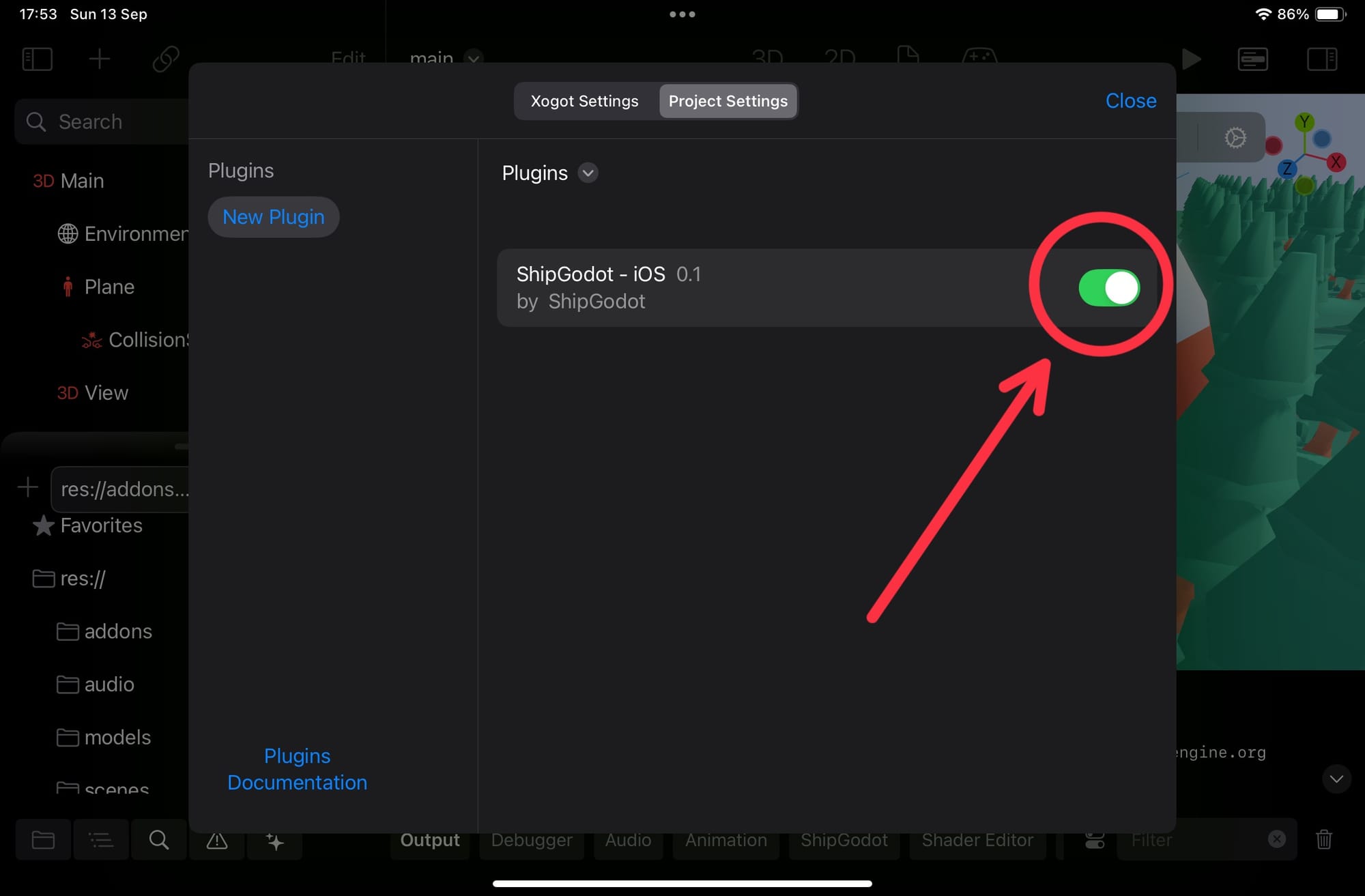
The plugin now appears docked in the bottom bar
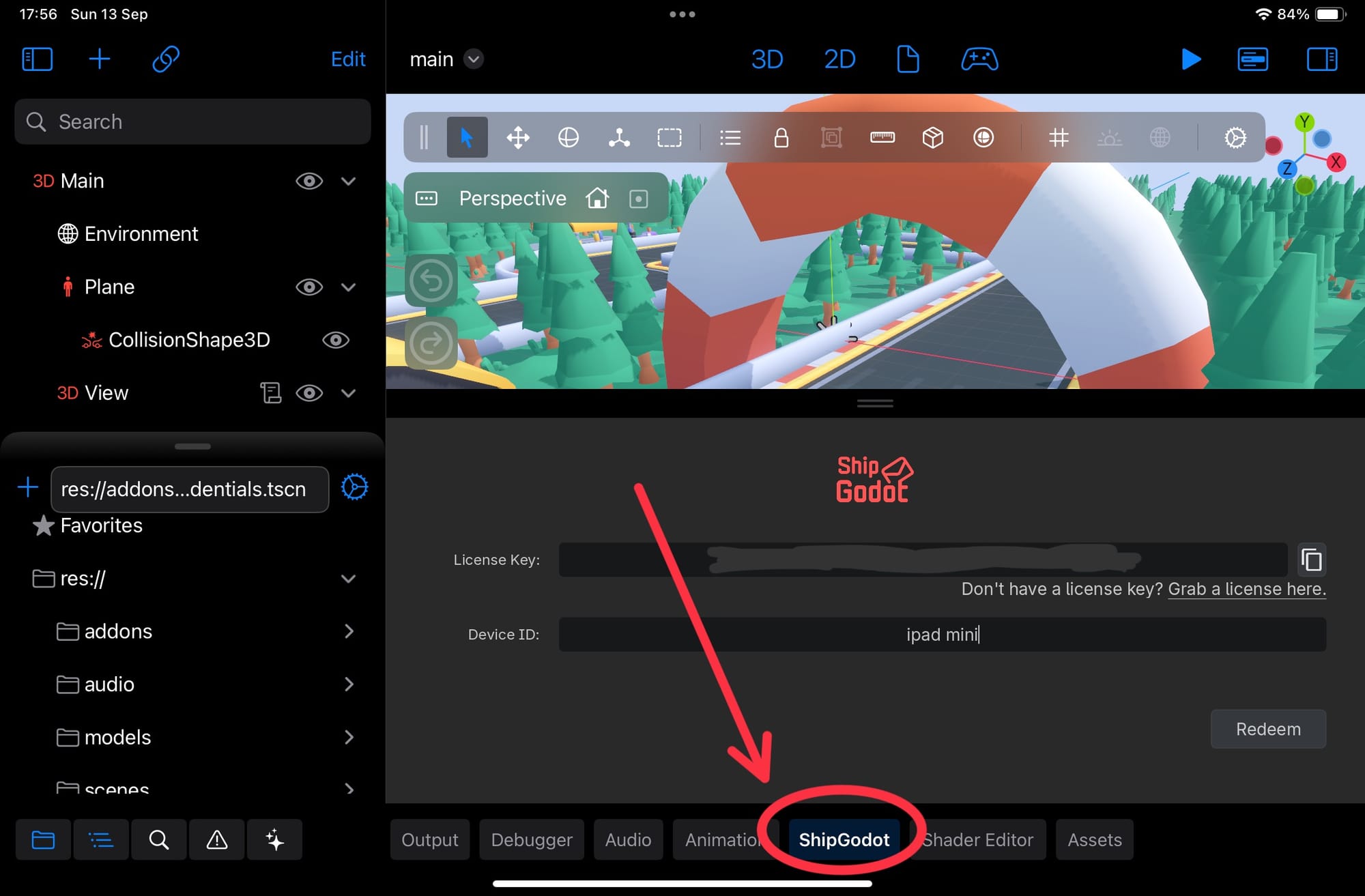
Authenticate and add your Apple credentials
The first time you open ShipGodot on a device, it asks for your license key.
- 1. Enter your license key and give this device a name
- 2. If this license doesn't have Apple credentials configured yet, you'll be prompted for them now
- 3. Enter your Apple Team ID
- 4. Enter your App Store Connect API key details
Note: The API key must be Admin-scoped. Keys with a narrower role can't upload builds.
- 5. Once you've generated the key, download it to your device
- 6. In Files, go to Downloads and move the key to the root of the Xogot folder:
On My iPad > Xogot
Warning: Don't put the key in your project folder! Keeping it outside means there's no way to accidentally commit it to your game's repository.
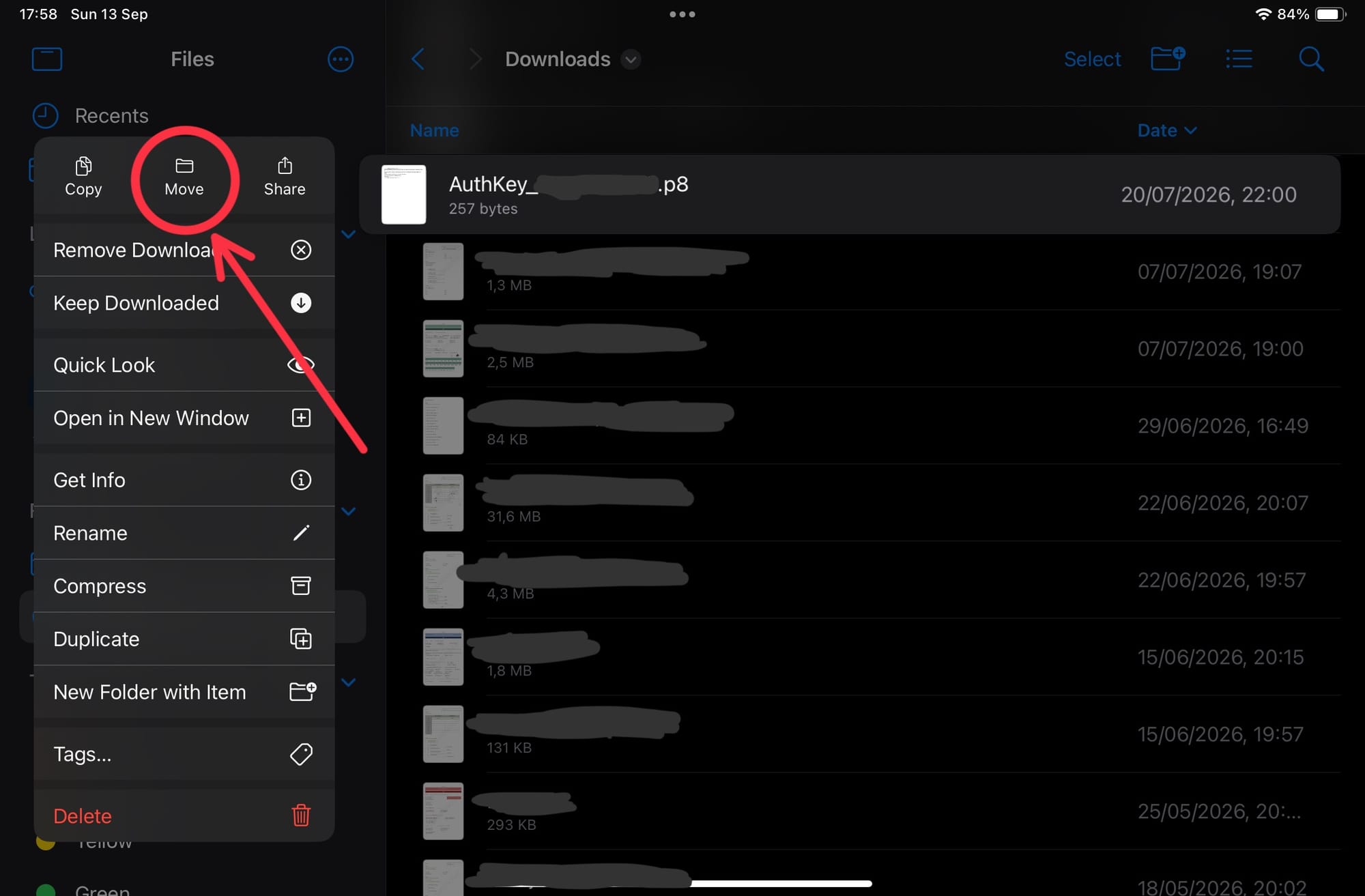
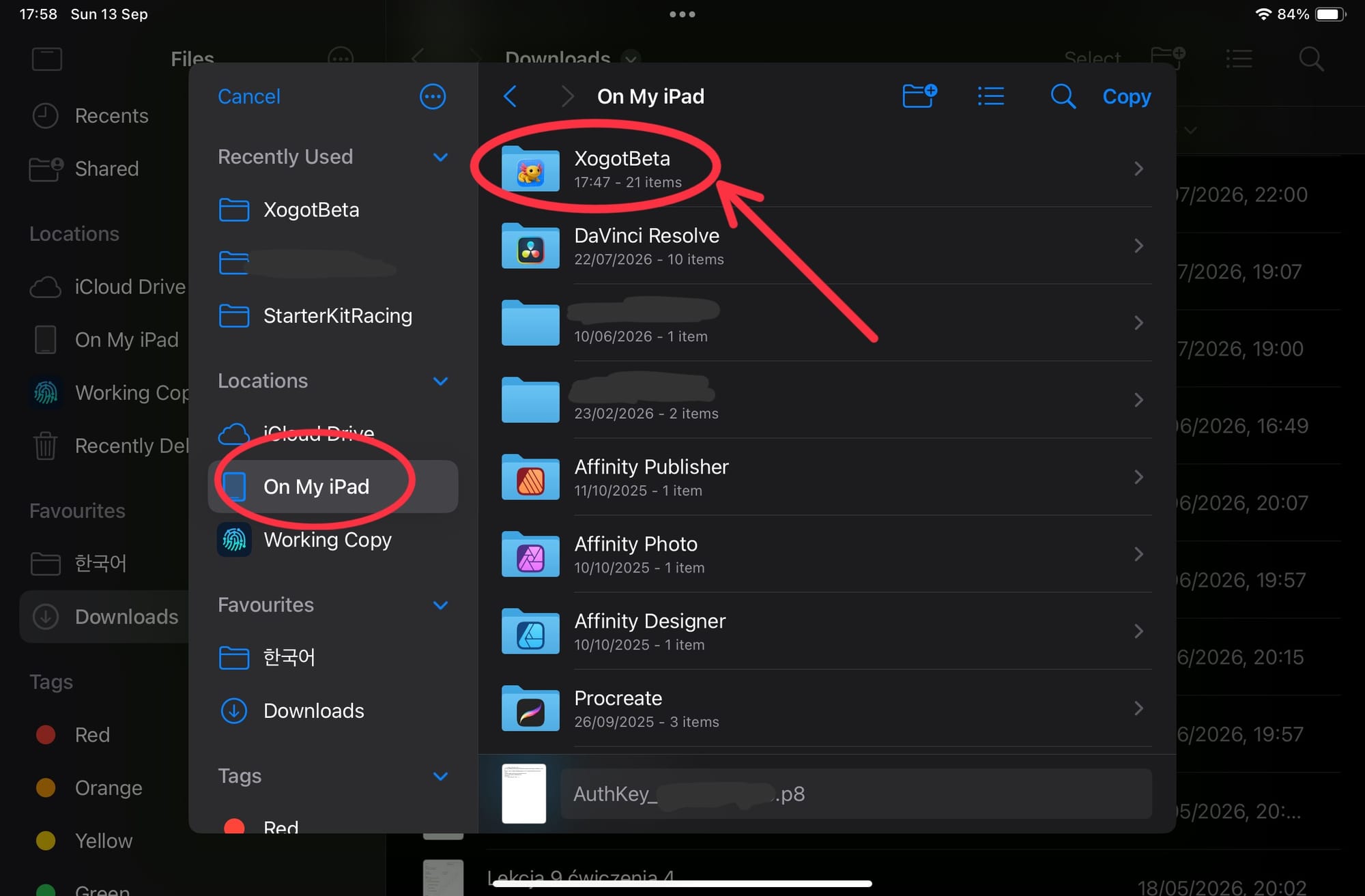
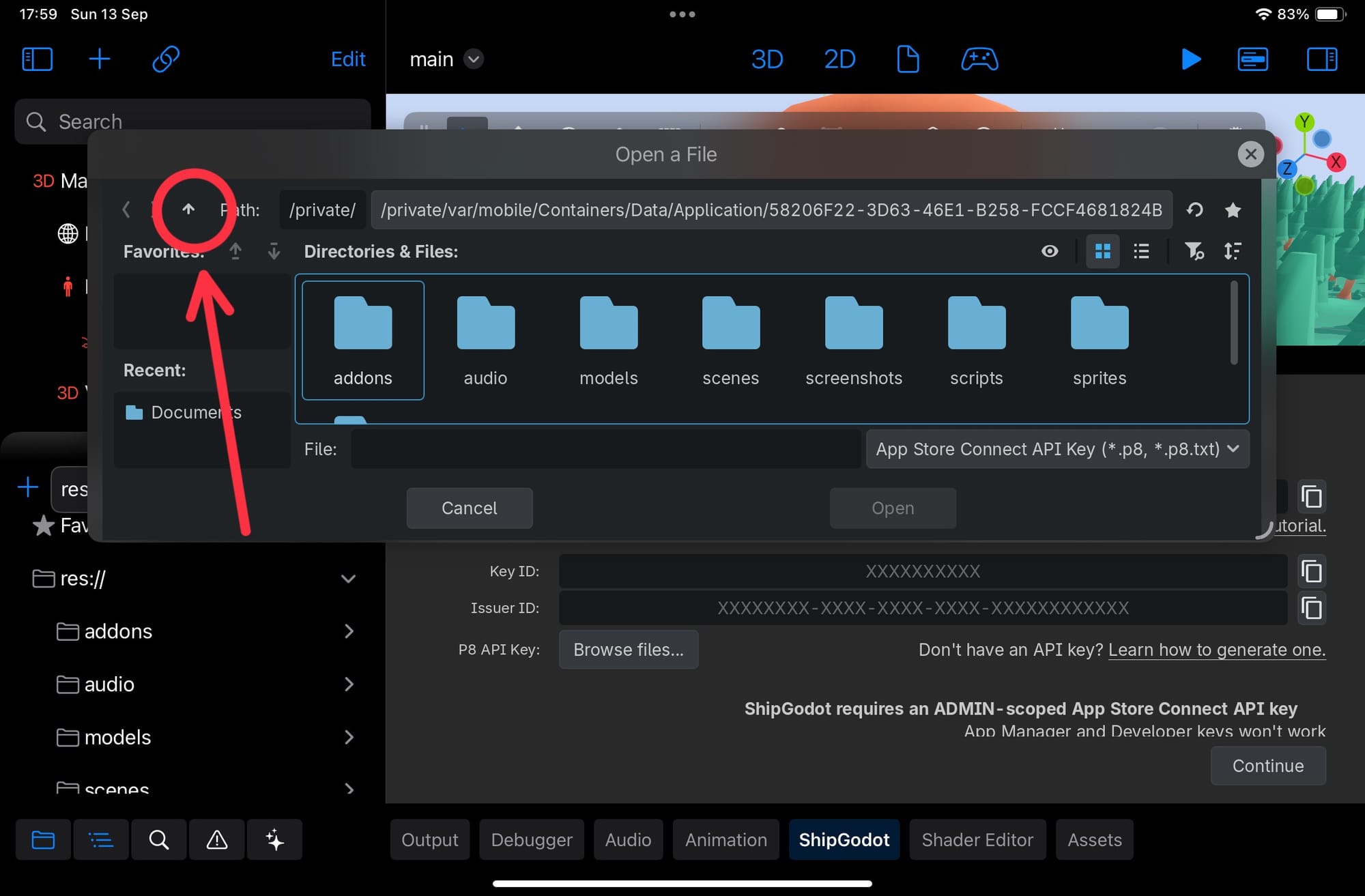
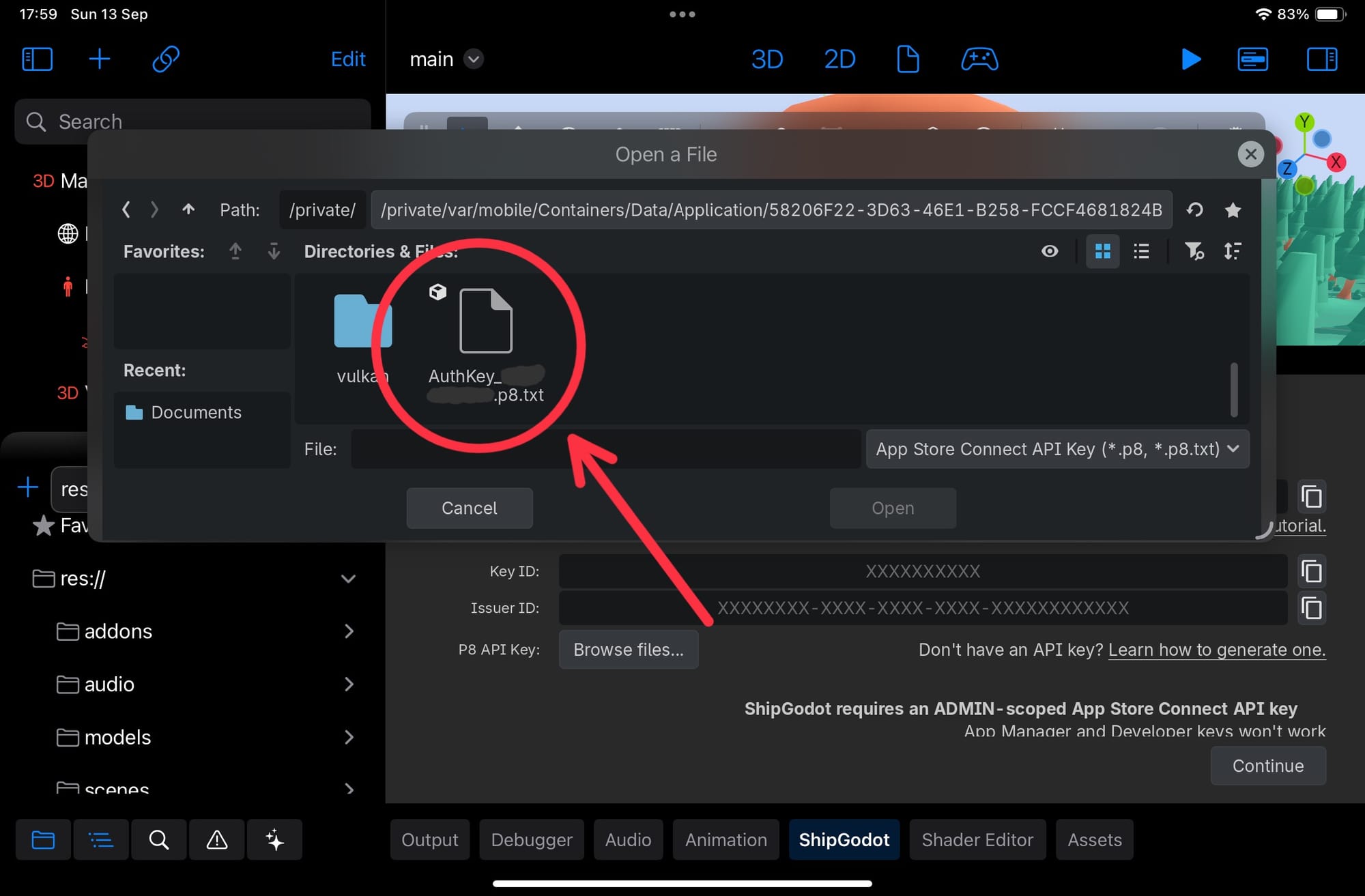
- 7. In ShipGodot, browse for the key: tap the up arrow to step out of the project folder into the Xogot root, then select your key
Build and ship to TestFlight
Before you build, make sure you have an App ID and an app record setup for your game in App Store Connect:
Enter the App ID into ShipGodot when prompted, and you're ready to build!
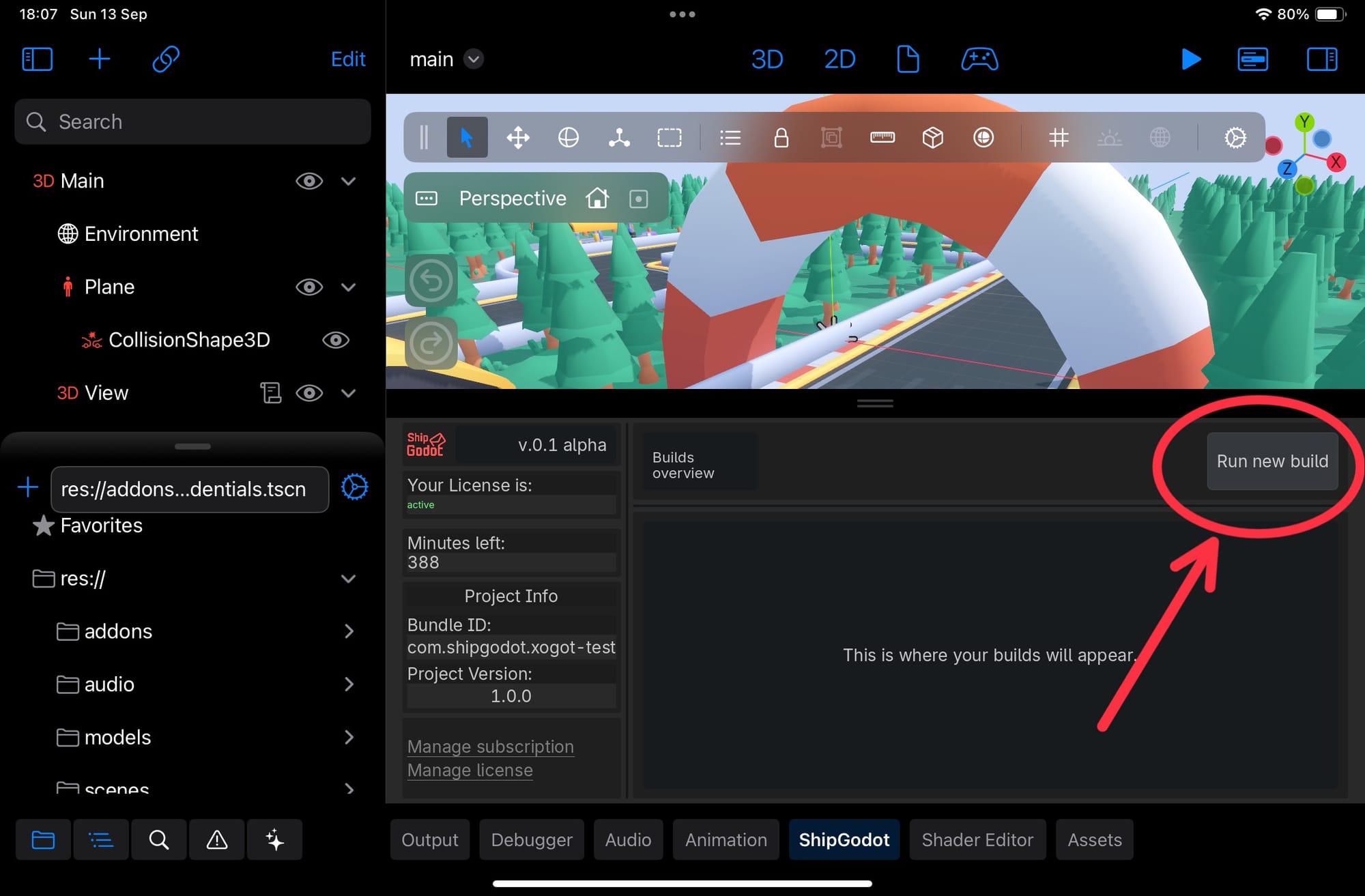
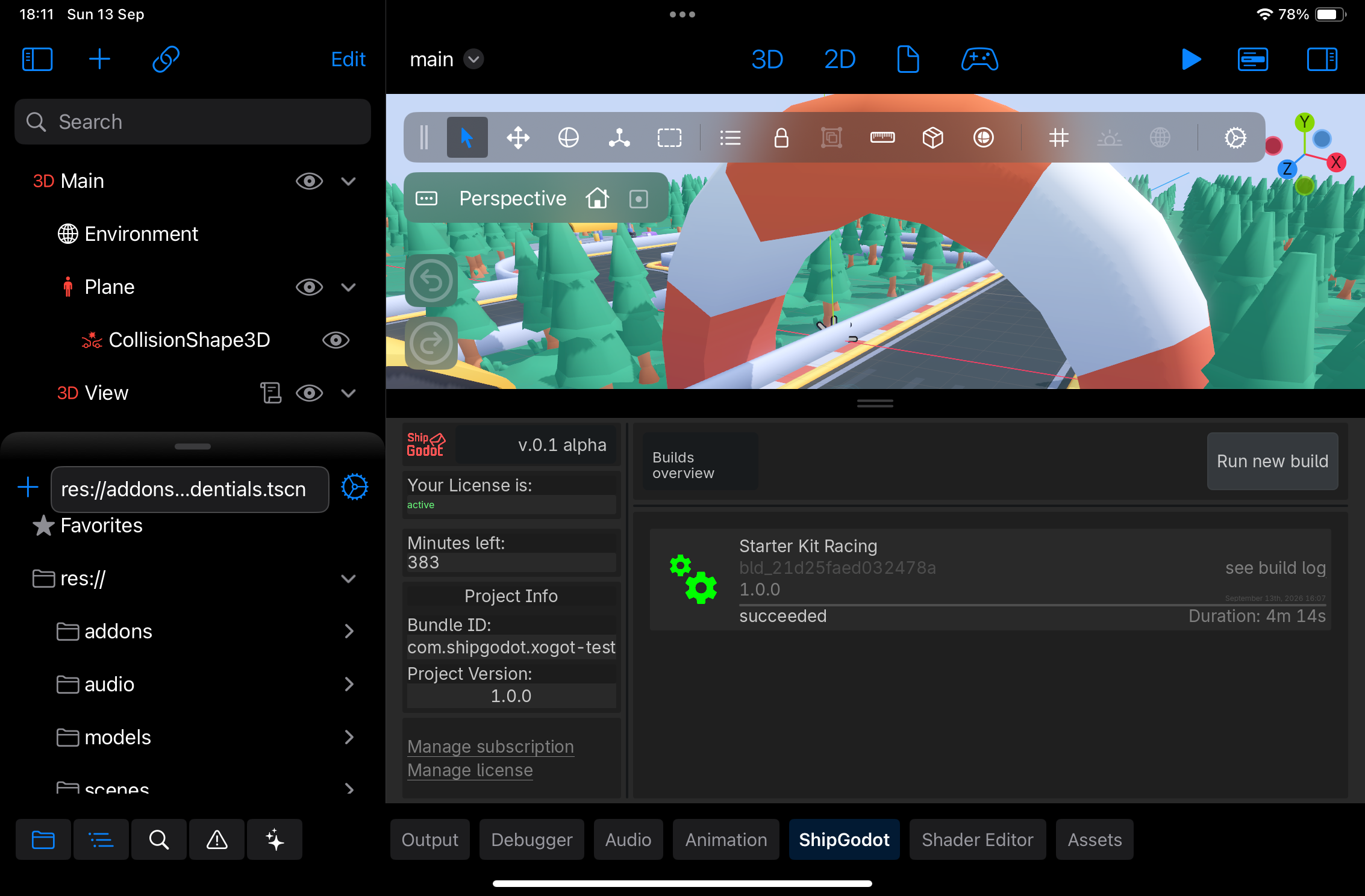
- 1. Tap Run new build
- 2. Wait for the build to succeed
Get it to your testers
If you haven't set up TestFlight groups for this game yet, now's the time: adding internal testers
Your build should now show up in TestFlight for you and everyone on your list!
fig. 15 Opening the game from TestFlight
And here we have it, Xogot game shipped from your iPad. If you're happy with the build, you can promote it to the App Store from App Store Connect: publishing overview.
Written by

Software engineer on paper, professional k-drama enthusiast in practice. Also a plant hoarder